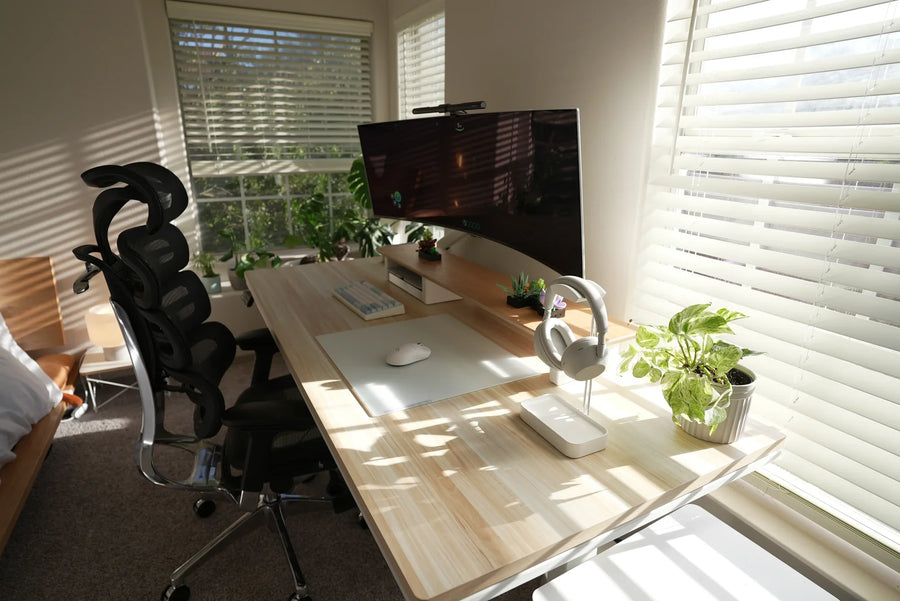
A setup-first method for deciding whether to keep the original monitor base, add a fixed riser, or use a compatible monitor arm.
The right ergonomic setup should adapt to your body, support frequent movement, and stay comfortable through a full workday.
A monitor stand is worth it only when it solves a specific workstation problem that the monitor’s original base cannot solve. That problem might be insufficient screen height, lost desk depth, frequent repositioning, a shared workstation, or the need to move between sitting and standing. If the original stand already keeps the screen centered, readable, and comfortable without crowding the desk, adding another stand may provide little practical value.
Before buying, separate three products that are often given the same name: the monitor’s original base, a fixed desktop riser that sits under that base, and an adjustable monitor arm that replaces it. They solve different problems and carry different compatibility requirements. The useful question is therefore not “Are monitor stands good?” but “Which measured problem am I paying this support to fix?”
Run a five-minute no-purchase test first
A new accessory should follow a workstation assessment, not lead it. Set the chair, keyboard, and mouse before judging the monitor. Sit as you normally work, keep the keyboard and mouse close enough that your shoulders can remain relaxed, and then observe the screen without lifting your chin or leaning forward.
- Use every adjustment you already own. Check whether the original base can raise, lower, tilt, swivel, or rotate the display. A locked or unfamiliar adjustment is not proof that a new support is necessary; consult the monitor manual first.
- Record screen position. Note whether the main screen is directly in front of you, whether its top is near or slightly below your natural eye line, and whether you can read it while your back remains supported.
- Record viewing distance. Measure from your eyes to the screen, then decide whether the display can move to a readable distance without pushing the keyboard forward or making you lean.
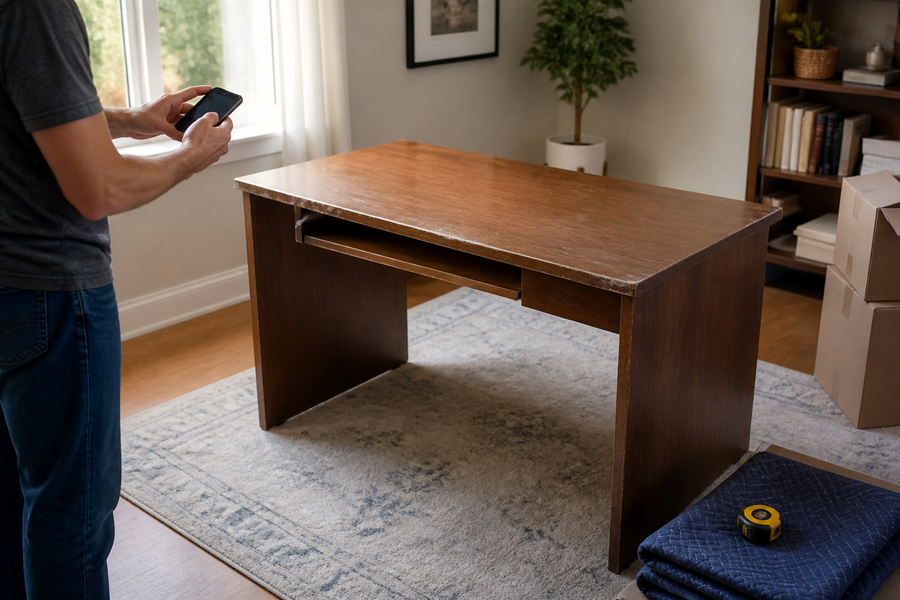
- Trace the space problem. Mark the footprint of the original base and the depth behind it. Decide whether you need more usable surface, more distance from the screen, or merely a tidier appearance.
- Count position changes. Note whether one person uses one position all day, multiple people share the screen, or the monitor must follow a sit-stand desk through different working heights.
OSHA’s computer-workstation guidance recommends placing a monitor directly in front of the user, generally 20–40 inches (50–100 cm) from the eyes, with the top line at or slightly below eye level. OSHA also says the monitor should be considered together with the desk, chair, and keyboard. Treat those measurements as starting points: screen size, text size, vision, corrective lenses, and the task can change the position that works for an individual.
The Canadian Centre for Occupational Health and Safety makes the same practical point more explicitly: viewing-angle and distance recommendations differ, so they should guide a setup rather than become a fixed command. If the current monitor passes this baseline, “no new stand” is a valid result.
Match the problem to the least complicated fix
Use the following matrix after the baseline. It keeps the decision tied to evidence instead of an accessory label.
| What you observed | Lowest-complexity option | What it does not solve | Pass condition |
|---|---|---|---|
| The screen is already centered, readable, and at a useful height and distance | Keep the original base | Aesthetic or storage preferences | No leaning, head tilt, crowding, or unstable support |
| The screen is slightly too low but rarely moves | Use the original height adjustment or a stable fixed riser | Frequent reach, rotation, or depth changes | The riser supplies only the needed lift and fully supports the base |
| The original base consumes needed depth or the screen must move often | Evaluate a compatible monitor arm | A weak desk, incompatible display, or poor cable plan | Display, mount, desk, attachment, and movement checks all pass |
| Two displays need independent alignment | Compare separate arms with a compatible dual-monitor support | A layout that still requires repeated neck rotation | The primary display can remain in front and both screens fit the rated support |
| The screen position changes between users or seated and standing work | Use the existing adjustment if sufficient; otherwise evaluate an adjustable arm | Insufficient desk travel or cable slack | Every intended position can be reached and tested safely |
This “least complicated fix” rule matters because adjustability has a cost beyond price. A riser occupies surface area. An arm introduces mounting hardware, a concentrated desk attachment, movement joints, and cable travel. Added complexity is worthwhile when it resolves a measured limitation, not merely because it creates more settings.
When a fixed monitor riser earns its footprint
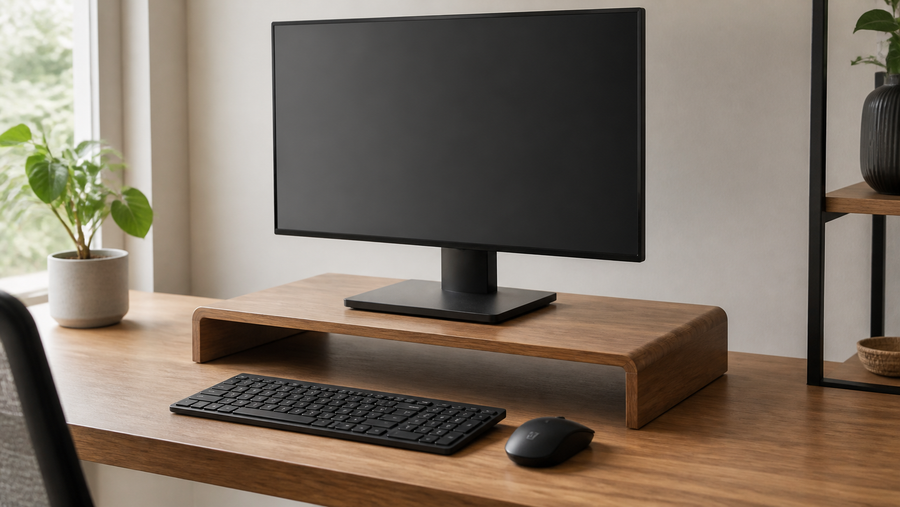
A fixed riser is usually worth considering when one display on its original base needs a modest, permanent lift. It can be the simplest option because it does not require a VESA mounting interface or a desk clamp. A shelf beneath the platform may also organize small items, although storage should remain a secondary benefit.
Judge a riser on four fields: the lift it provides, the dimensions of its top surface, its documented supported load, and the desk depth that remains after placement. The entire monitor base must sit flat on the platform with room to spare. The platform should not flex, rock, slide, or push the screen closer than the readable distance established in the baseline.
The FIRA Home Office Buying Guide identifies stability and adequate size as key monitor-riser considerations. Those checks are more useful than choosing a riser by screen size alone, because monitors of the same diagonal size can have very different weights and base footprints.
A riser is probably not worth it when the original stand already reaches the required height, when the extra platform would make the screen too high, or when the platform would take away the desk depth you are trying to recover. If you are comparing household supports with purpose-built risers, reject any option that cannot document its supported load or keep the monitor’s complete base flat, stable, and fully supported.
When a monitor arm earns the added hardware
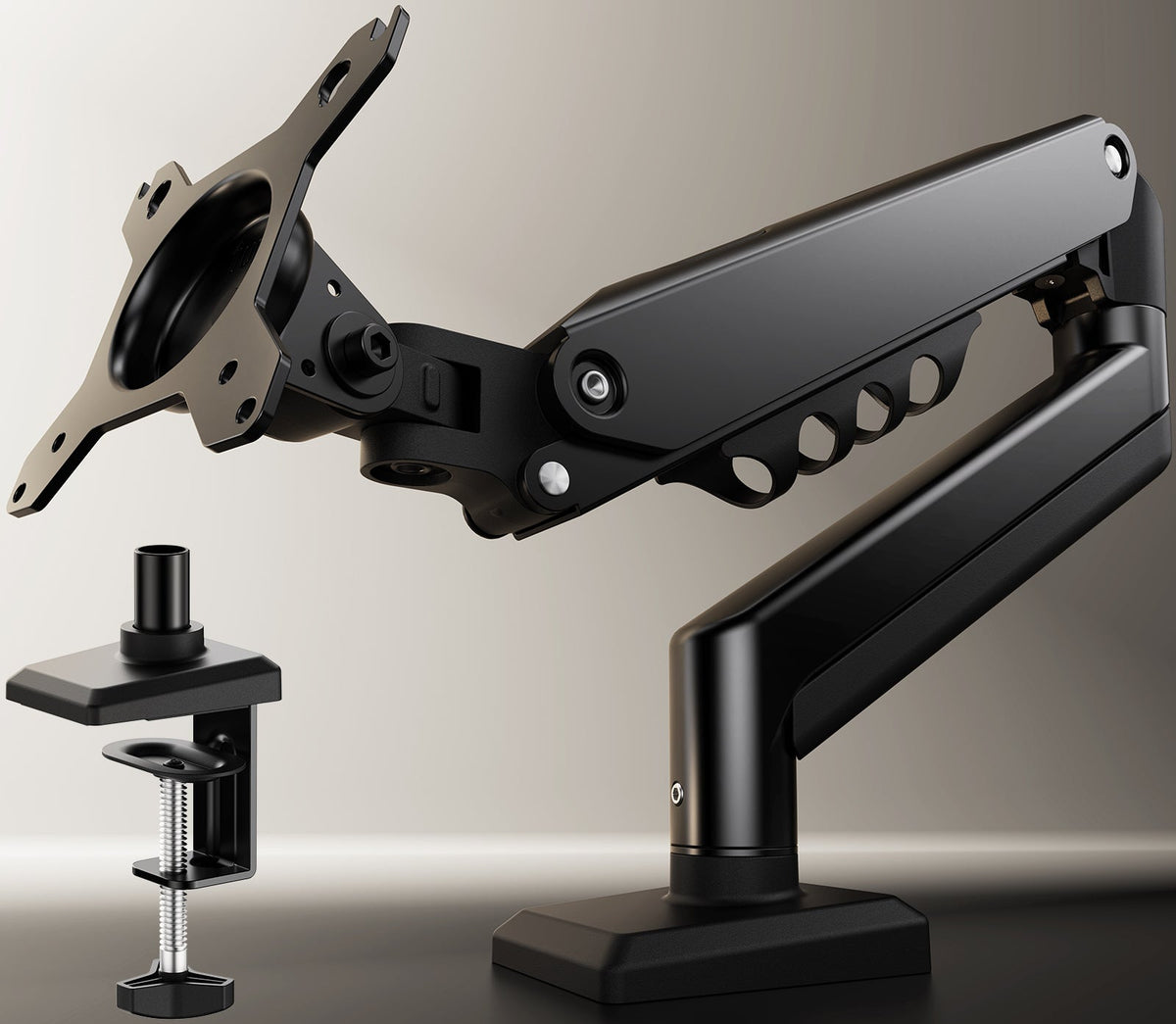
An adjustable arm can be worth the added hardware when the screen must move in height, reach, angle, or orientation; when the original base prevents a useful viewing distance; or when a shared or sit-stand workstation needs repeatable positions. Removing the original base can free that footprint, but the arm itself still needs a sound attachment area and enough clearance to move behind and beside the screen.
Before treating any arm as an upgrade, verify the complete connection chain:
- Monitor to mounting plate: confirm the display has an approved mounting interface and that its pattern and hardware match the arm instructions.
- Monitor weight to arm range: use the display’s weight in the configuration specified by the arm maker. Screen diagonal is not a weight rating.
- Arm to desk: confirm desktop material, thickness, edge shape, clamp or grommet location, and any reinforcement requirements.
- Movement to available space: check wall clearance, nearby shelves, adjacent displays, and the arm’s path through every position you plan to use.
- Cables to movement: power and signal cables need slack for arm movement and, on a height-adjustable desk, for the desk’s full intended travel.
A VESA-compatible hole pattern alone does not prove that an arm fits. It says nothing about the display’s weight relative to the arm, the desk’s ability to accept the attachment, or the clearance required for movement. If any link in that chain is unknown, pause and check the relevant manufacturer instructions.
OdinLake currently offers single-monitor and dual-monitor stand options. Use their live product pages to verify the current compatibility fields for the exact configuration rather than carrying a specification from another model or an older listing. After a compatible support is installed, follow the separate monitor stand and arm adjustment guide to set height, distance, tilt, tension, and sit-stand travel.
What “worth it” cannot be decided from
Several common shortcuts sound decisive but leave out the information that determines whether the accessory will help.
- Price alone: a low price does not make an accessory useful, and a high price does not prove compatibility or better workstation fit.
- An “ergonomic” label: the result depends on where the screen ends up for the actual user and task.
- Screen size alone: two screens with the same diagonal measurement can differ in weight, mounting pattern, depth, and center of gravity.
- Desk photos: a clean product photo does not show your available depth, clamp zone, wall clearance, or cable route.
- More adjustment: additional joints help only if the needed position falls within their range and remains stable in use.
- Storage claims: space under a riser is not a net gain if the platform consumes needed writing area or brings the screen too close.
There is also no universal winner between a riser and an arm. A riser preserves the original base and simplifies compatibility, but it provides mostly fixed height and keeps the base footprint. An arm can change height and reach and may clear that footprint, but it requires a verified display-to-arm and arm-to-desk connection. The better option is the one that passes the relevant checks with no unnecessary mechanism.
Use a pass-or-pause scorecard before buying
Write one answer for each row. A blank or assumed answer is a pause, not a pass.
| Decision field | Pass | Pause |
|---|---|---|
| Problem solved | You can state the missing height, distance, surface area, or movement | The goal is only “make the desk more ergonomic” |
| Monitor compatibility | Weight, interface, hardware, and manual requirements are verified | Fit is inferred from screen size or appearance |
| Desk compatibility | Material, thickness, attachment area, and condition meet the instructions | The clamp would cross trim, glass, damage, a cable tray, or an unknown core |
| Final screen location | The support can reach the measured height and readable distance | The range is guessed from a marketing photo |
| Movement and cables | Clearance and cable slack cover all intended positions | A wall, shelf, second screen, or cable may stop the movement |
| Support path | Instructions, parts information, and product support are available | The exact model or attachment method cannot be confirmed |
If all relevant fields pass, the stand has a defensible job and is more likely to be worth the expense and setup effort. If the baseline already works, keep the original base. If one compatibility field is missing, resolve it before ordering or installing anything.
Recheck the result after installation
A compatible product can still be adjusted poorly. Once the support is installed according to its instructions, return to the same seated baseline and check screen centering, height, viewing distance, tilt, glare, and keyboard reach. Lightly use the keyboard and move the screen only as intended; the base, riser, arm, and desk attachment should remain stable.
For a standing desk, observe the support and cables through the full intended travel before normal use. Stop if a cable tightens, an arm contacts a wall or shelf, a screen approaches another object, or the desktop or attachment shows movement. Recheck fasteners and tension only as the product instructions direct.
If you are unsure about an OdinLake arm, desk attachment, or product pairing, compare the current options in the OdinLake accessories collection and send the exact monitor model, weight, mounting pattern, desk model, desktop thickness, and intended attachment method to OdinLake support. Those fields produce a more useful answer than asking whether a stand “fits most setups.”
Frequently Asked Questions
Is a monitor stand worth it?
It is worth it when it fixes a measured limitation such as insufficient screen height, unusable viewing distance, lost desk depth, or frequent repositioning—and when the complete monitor-to-support-to-desk connection is compatible. If the original base already creates a comfortable, stable setup, another stand may add little functional value.
Do I need a monitor stand if my monitor already has a height-adjustable base?
Probably not if the original base can place the screen directly in front of you, at a useful height and readable distance, without crowding the desk. Use its full adjustment range first. Consider another support only when a documented limit remains, such as inadequate reach, excessive base footprint, or the need to reposition the display between users.
Is a monitor riser or a monitor arm better?
A riser is usually simpler for a fixed height increase because the monitor remains on its original base. An arm is more useful for changing height, reach, rotation, or desk clearance, but it adds display, mounting, desk, and cable compatibility checks. Neither is universally better.
Does a monitor stand actually create more desk space?
A monitor arm may clear the original base footprint, but its clamp, pole, and movement still require space. A riser may create storage underneath while occupying surface area and depth. Measure the usable area before and after the proposed setup; do not treat visible empty space as the same as usable working space.
Can any monitor use a monitor arm?
No. The monitor’s approved mounting interface, pattern, weight, hardware, and manufacturer instructions must match the arm. The desk and attachment must also meet the arm maker’s requirements. A matching hole pattern or screen size by itself is not enough to establish compatibility.
Is a monitor stand useful on a standing desk?
It can be useful when the display needs a different position at seated and standing heights and the support can reach both positions. Verify the desk attachment, arm clearance, screen stability, and cable slack through the desk’s full intended travel. If the original base already works at both heights, an added arm may not be necessary.