The right ergonomic setup should adapt to your body, support frequent movement, and stay comfortable through a full workday.
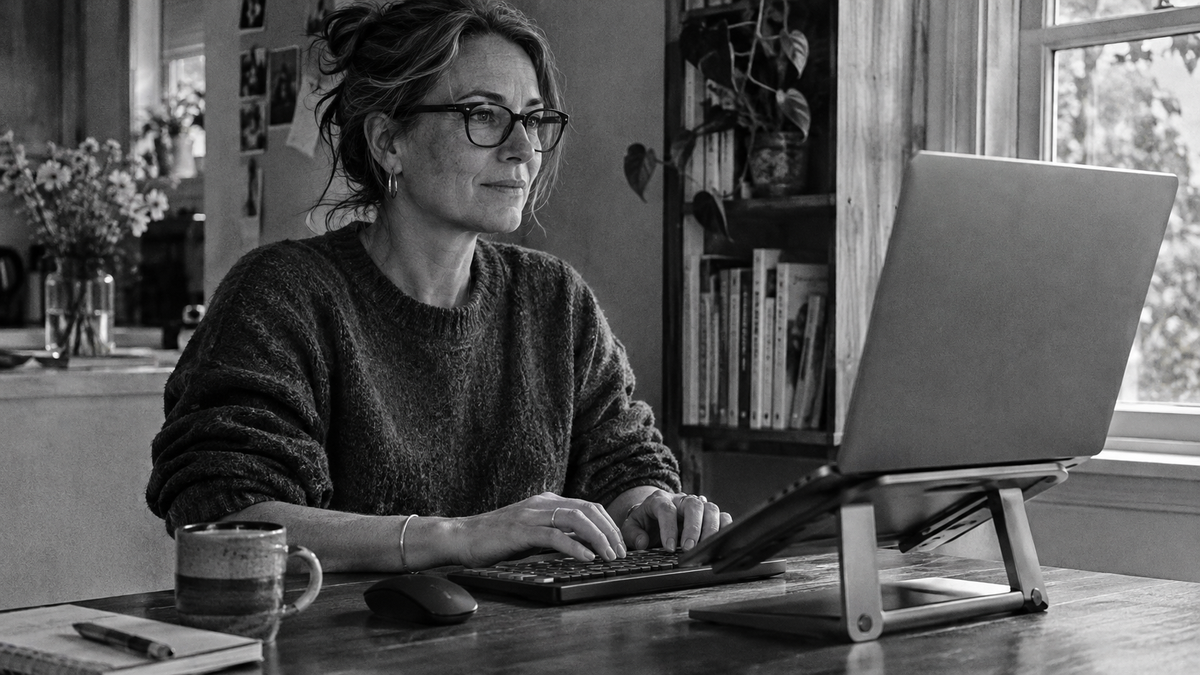
For remote workers and students who spend long sessions typing on a laptop at a dining table, separate the screen from the keyboard before trying to find one perfect laptop height. Raising the whole machine can make its display easier to view while leaving the built-in keys too high. Keeping the keys low may leave the screen difficult to see without leaning down. A separate keyboard and pointing device let you adjust those two jobs independently.
This guide explains how to turn that idea into a repeatable setup, including what to check if you pack everything away after work. It is intended for everyday computer tasks, not a promise to treat neck pain or another medical condition.
Why laptop height creates a compromise
A laptop is convenient because the display and input devices travel together. At a desk, that same connection limits their placement. Your eyes and hands need different working positions, and tilting the screen cannot change the height of the keyboard.
OSHA's workstation purchasing guide recommends external input devices for laptops and tablets, and considers docking arrangements for display placement. Its guidance is about organizing a workstation; it does not establish that any particular stand, desk, or chair prevents injury.
A Johns Hopkins home-workstation guide also discusses the difficulty of combining laptop use with a table and chair that do not adjust together. These are established institutional resources, checked November 6, 2026, rather than newly published research or evidence of a new shopping trend.
1. Set the typing position before raising the display
Clear enough space for a separate keyboard and mouse. Position the keyboard so you can type without reaching forward or lifting your shoulders. Keep the mouse nearby rather than beyond a notebook or cup. Try several ordinary tasks, including clicking and dragging, instead of checking only where your hands rest.
OSHA's keyboard guidance advises relaxed shoulders, elbows near the body, and wrists aligned with the forearms. Those observations are more useful than copying a desk height from someone of a different size.
If the table is high, raising an adjustable chair may improve your relationship to the keys, but check foot support and clearance under the table. Do not keep raising the seat if your thighs meet a drawer or your feet lose support. A suitable keyboard tray or a different work surface may be needed. Avoid balancing equipment on unstable objects.
2. Position the screen independently
Once the hands have a workable position, place the laptop on a stable, compatible stand, or connect an external monitor. Follow the stand's load and size limits and keep the computer's ventilation openings clear. The separate keyboard stays where your hands need it.
OSHA's monitor guidance describes a screen directly ahead, with its top at or below eye level, and a viewing distance that allows readable text without leaning. Use those as starting checks, then adjust for your task and vision. People using bifocal lenses may need a lower display to avoid tipping the head back.
Increase text size when needed rather than pulling your head toward the screen. Also check reflections: a placement that looks suitable in the morning can become difficult when afternoon light reaches the display. Move or angle equipment to address glare while preserving a usable hand position.
3. Check whether the table has enough depth
A laptop stand uses space behind the keyboard. On a shallow table, that can push the keyboard toward the edge or leave the screen too close. Arrange the complete setup before ordering a larger stand or monitor. Include the mouse area, power connections, and any documents you regularly use.
| What you notice | What to change or test |
|---|---|
| Screen looks better, but typing feels too high | Keep the display raised and lower the separate input devices |
| Mouse use pulls your arm outward | Clear a closer mouse area; consider a more compact keyboard |
| Keyboard sits on the table edge | Recheck usable depth and the stand's footprint |
| Feet lose support after raising the chair | Check suitable foot support and table clearance together |
| Setup changes after every meal | Record positions and create a simple pack-away routine |
4. Make a shared table easy to reset
For a dining table, consistency matters more than leaving equipment permanently in place. Store the keyboard, mouse, and stand together. Take a reference photo of the arrangement that works for you, including the chair position. Recheck it after setting up; a photo is a reminder, not a substitute for noticing how you are sitting.
Keep cables away from walking routes and chair wheels. Before closing the laptop or moving the stand, disconnect equipment according to its instructions. A repeatable setup should not require moving heavy objects or balancing a stack of loose books every morning.
When an adjustable desk helps
If you cannot get the input surface to a suitable height, or share the workstation with someone who needs different settings, compare an adjustable desk with your measurements. Check its lowest position as carefully as its highest. Raising a desk does not independently raise a laptop display relative to its keyboard, so the screen-and-input separation still matters.
The OdinLake S2 standing desk is one option to investigate. The current listing, checked November 6, 2026, states a 27.95–45.67-inch height range. That range will not suit every user or keyboard arrangement. Compare the selected configuration, usable surface, and under-desk clearance with your setup before purchasing.
If seating is the remaining limitation, use our chair adjustment guide. A better chair cannot compensate for every mismatch between the laptop, table, and input devices.
Keep the arrangement flexible
OSHA's work-process guidance includes task variation and opportunities to change posture. Even a carefully arranged workstation should allow you to pause, move, and do something different. Persistent or worsening symptoms need qualified advice rather than another equipment purchase based on a health promise.
This approach is less useful when you have no room for separate input devices or need to move continuously between locations. In that case, aim for a practical temporary arrangement and use a more adjustable station for longer tasks when available. The goal is a setup you can use and reset reliably, with screen and hand positions that no longer depend on the same compromise.