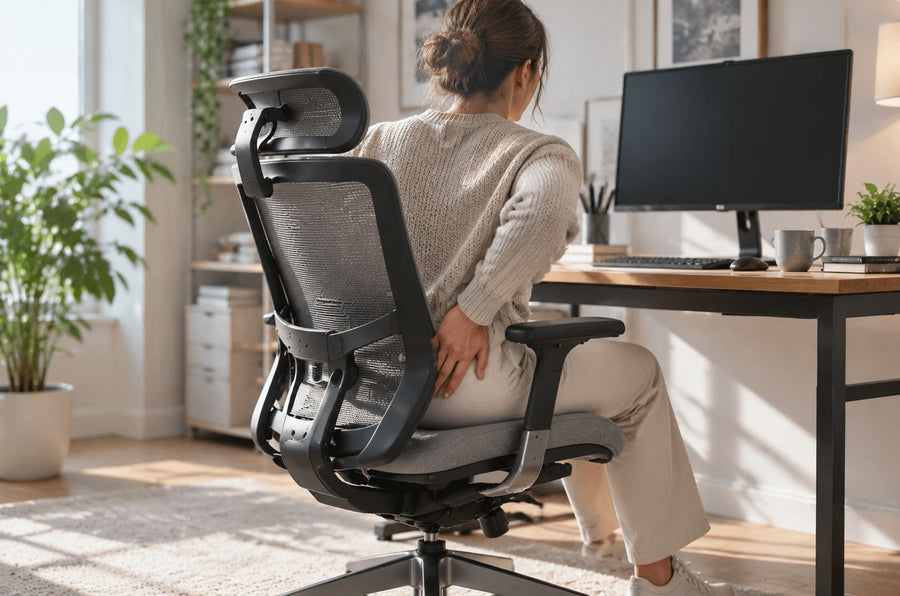
The right ergonomic setup should adapt to your body, support frequent movement, and stay comfortable through a full workday.
Quick Answer
Start by finding the source of the discomfort. Check the seat height, seat depth, backrest, lumbar support, armrests, and seat surface. Adjust the chair first. Then correct the desk and screen position. Add a cushion, lumbar pillow, or footrest only when the chair still lacks support.
Use this order:
-
Find where the discomfort starts.
-
Adjust the chair to fit your body.
-
Match the chair to the workstation.
-
Add support only where it is needed.
-
Replace the chair if it is worn, unstable, or the wrong size.
-
Improve your sitting habits and move during the day.
A cushion can soften a hard seat. It cannot correct poor chair dimensions, failed controls, or a backrest that does not fit your body.
Find What Is Making the Chair Uncomfortable
The location of the discomfort often points to the setting that needs attention.
|
Where you feel discomfort |
Common cause |
Check first |
|
Back of the knees |
Seat is too high or deep |
Seat height and depth |
|
Lower back |
Lumbar support is misplaced or weak |
Lumbar position |
|
Hips or tailbone |
Seat is hard, worn, or poorly shaped |
Seat surface |
|
Neck or upper back |
Backrest, headrest, or screen is misplaced |
Backrest and monitor |
|
Shoulders |
Armrests or desk are too high |
Armrest and desk height |
|
Feet or lower legs |
Feet are not supported |
Chair height and footrest |
Check the Seat Height and Depth
Sit fully against the backrest. Your feet should reach the floor, and the seat edge should not press behind your knees.
If your feet hang, lower the chair or add a footrest. If the seat edge presses into your legs, shorten the seat depth.
Check the Backrest and Lumbar Support
The backrest should support your torso without pushing you forward. The lumbar section should meet the inward curve of your lower back.
If your lower back loses contact with the chair, adjust the lumbar position or pressure. If you lean forward to work, check the desk and keyboard.
Check the Seat Cushion and Armrests
Check whether the foam returns to shape. Inspect mesh for sagging, tears, or uneven tension.
Rest your forearms on the armrests while keeping your shoulders relaxed. High armrests can lift the shoulders, while low ones may cause sideways leaning.

Adjust the Chair to Fit Your Body
Adjust the seat first, then the backrest, lumbar support, armrests, and recline.
Set the Seat at the Right Height
Chair Height affects foot support, knee position, elbow height, and your distance from the desk.
Raise or lower the seat until both feet rest on the floor. Keep your hips level with or slightly above your knees, with your forearms near work surface height.
OSHA recommends supporting the feet on the floor or a footrest while keeping the shoulders relaxed and the elbows close to the body.
Adjust the Seat Depth
Sit with your hips against the backrest. Leave a small gap, often about two finger widths, between the seat edge and the back of your knees.
Move the seat backward if it presses into your legs, or forward if your thighs lack support.
OSHA’s computer workstation guidance recommends a seat pan that supports most of the thighs without touching the back of the knees.
Position the Lumbar Support
Place the lumbar support in the inward curve above the pelvis. It should not press against the tailbone or the middle of the back.
Start with light pressure and increase it only when needed. If you prefer support that adapts as your posture changes, the OdinLake L3 FlexBreath® Ergonomic Chair uses auto-tracking lumbar support, reducing the need for repeated manual adjustments.
Where Should Lumbar Support Be explains how to correct support that feels too high or too low.
Set the Backrest and Headrest
Keep the backrest upright or slightly reclined during typing. Use a deeper recline for reading, calls, or short breaks.
Set the recline tension so the backrest follows your movement while the lumbar section stays in contact.
Place the headrest near the upper neck or base of the skull without pushing the head forward.
Adjust the Armrests and Recline
Set the armrests so your forearms rest lightly and your shoulders stay down. Keep your elbows near your sides.
Lower the armrests if they lift your shoulders. Raise them if you reach down, and keep them clear of the desk.
OSHA notes that armrests can create awkward postures when they are too high, too low, or placed where they block access to the keyboard.
Match the Chair to Your Workstation
A properly adjusted chair can still feel uncomfortable when the desk, keyboard, mouse, or monitor is in the wrong place.
When creating an ergonomic desk with chair setup, adjust both together so you do not lean forward, lift your shoulders, or overreach.

Keep Your Elbows Level With the Desk
Set the chair so your elbows sit near the height of the keyboard. Keep your upper arms close to your body.
If the desk is too high, raise the chair and support your feet. If the desk is too low, lower the chair while keeping enough space for your knees. OSHA also recommends adding a footrest when the chair must be raised to suit a fixed desk.
Place the Keyboard and Mouse Within Reach
Keep the keyboard close enough that your elbows remain near your sides. Place the mouse beside the keyboard.
Move frequently used items closer to reduce reaching. Use a keyboard tray when the desk surface cannot provide a suitable typing height.
Set the Monitor at the Right Height
Place the monitor directly in front of you. Set the top line of the screen at or below eye level.
OSHA recommends at least 20 inches of viewing distance, while keeping the screen readable without leaning forward.
Laptop users can raise the screen with a stable stand. Add an external keyboard and mouse so the hands stay near elbow height.
Add Support When Adjustments Are Not Enough
Add an accessory only when it solves a clear problem. A thick cushion can raise your body, shorten usable seat depth, and move the lumbar support out of position.
|
Comfort problem |
Adjust first |
Add if needed |
|
Hard seat |
Seat position and depth |
Foam cushion |
|
Tailbone pressure |
Seat angle and sitting position |
Contoured cushion |
|
Lower back gap |
Lumbar position |
Lumbar pillow |
|
Unsupported feet |
Chair height |
Stable footrest |
|
Raised shoulders |
Armrest height |
Forearm support |
|
Hot seat |
Room airflow |
Breathable cover |
Use a Foam Seat Cushion for Pressure Relief
Use a foam cushion if the seat still feels hard after adjustment. Choose one that supports your weight without flattening or allowing your hips to sink too far.
Do not choose by thickness alone. A thick cushion may raise you above the lumbar support and make the armrests too low.
After adding the cushion:
-
Recheck the chair height.
-
Keep both feet supported.
-
Reposition the lumbar support.
-
Check the space behind your knees.
-
Adjust the armrests.
-
Make sure the cushion does not slide.
A removable cushion can improve an existing seat, while an integrated foam seat is less likely to move.
Add a Lumbar Pillow for Lower Back Support
Use a lumbar pillow when there is a clear gap between your lower back and the backrest.
Choose a small pillow that follows the lower back curve and place it low.
Use a thinner pillow if it pushes your shoulders forward. Avoid layering it over strong lumbar support.
Use a Footrest for Better Leg Support
Use a footrest when the chair must be raised to match the desk but your feet no longer reach the floor.
Choose a stable model that supports the full foot without sliding.
OSHA recommends a footrest when lowering the chair would place the keyboard or monitor too high.
When Should You Replace Your Chair?
Replace the chair when worn materials, failed controls, or poor dimensions remain uncomfortable.
The Seat Foam or Mesh No Longer Supports You
Check whether the foam returns to shape. Deep dents or uneven areas may increase hip pressure.
Inspect mesh for sagging, tears, or loose tension. A cushion will not restore a failed seat structure.
The Chair Sinks, Wobbles, or Will Not Lock
The chair should hold its height and recline position. A sinking seat may indicate a worn gas lift.
Check the base, casters, frame, levers, and recline lock. Tighten loose fasteners when possible.
Stop using the chair if the base, frame, or backrest is cracked or unstable.
The Chair Cannot Be Adjusted to Fit Your Body
Replacement may be the better option when the seat remains too high, low, deep, narrow, or wide.
It may also be a poor fit when the lumbar support misses your lower back or the armrests block the desk.
How to Choose a More Comfortable Replacement Chair
Choose features that solve the current problem. Check seat dimensions, lumbar position, armrest range, recline, and weight capacity.
The OdinLake O2 Ergo MAX 747 has five backrest height settings, dynamic lumbar support, about two inches of seat depth adjustment, 4D armrests, a 2D headrest, and a 90° to 135° recline range.
For users who prefer padding, the OdinLake O3 Ergo BUTTERFLY 753 is a comfortable office chair with a high-density foam seat, a soft fabric cover, and a breathable mesh backrest.
Check the listed dimensions before buying. Extra controls cannot correct the wrong seat size.
Other Tips for Staying Comfortable

Improve Your Sitting Posture
Sit with your hips near the back of the seat. Let the lumbar support and backrest carry part of your upper body weight.
Keep your shoulders relaxed and your elbows near your sides. Move the screen and keyboard closer instead of leaning forward.
Stand Up and Move Regularly
Stand, walk, or stretch regularly. Use calls or water breaks as reminders.
How Often Should You Stand Up from Your Desk provides more detail on planning sitting and standing periods.
OSHA advises changing position, making small chair adjustments, and walking around periodically instead of holding one posture for a long time.
Change Your Sitting Position
Sit upright during focused typing, then use a small recline during reading or calls.
Keep your feet supported and your lower back against the chair. Do not slide forward or twist to one side.
Take Short Breaks During Long Work Sessions
Take a brief break before discomfort builds. Stand, stretch, or walk for a few minutes.
Breaks work best when the chair, desk, and screen already fit your body.
FAQs
How Can I Make a Hard Office Chair More Comfortable?
Adjust the seat height, depth, and lumbar support first. Add a supportive foam cushion if the surface still feels hard. Recheck the chair height, armrests, and foot position after adding it.
Why Is My Chair Still Uncomfortable After Adjusting It?
The chair may not fit your body or workstation. Common causes include excessive seat depth, fixed armrests, misplaced lumbar support, worn foam, sagging mesh, a high desk, or a low monitor.
When Should I Replace an Uncomfortable Office Chair?
Replace it when the frame becomes unstable, the seat no longer provides support, the height or recline controls fail, or the chair dimensions do not fit your body.
Conclusion
To make a chair more comfortable for work and long sitting, start with the chair settings. Adjust the seat height, seat depth, lumbar support, backrest, and armrests until the chair fits your body. Then match the chair to your desk, keyboard, and monitor so you can work without leaning forward or lifting your shoulders.
Add a foam cushion, lumbar pillow, or footrest only when it solves a specific problem. If the seat is worn, the chair sinks or wobbles, or the adjustment range does not fit your body, replacement may be the better choice. A comfortable setup combines proper chair support, a well-positioned workstation, and regular movement throughout the day.