A controlled, model-aware method for separating desk wobble, uneven floor contact, desktop flex, and monitor-arm movement.
The right ergonomic setup should adapt to your body, support frequent movement, and stay comfortable through a full workday.
To stabilize a standing desk, first determine whether the whole frame moves, one foot rocks, the desktop flexes, or only a monitor shakes. Then correct the simplest verified cause: clear the travel path, place the desk on firm level contact, adjust approved leveling feet, confirm model-specific fasteners, center the load, and retest at the same height. Do not add braces, drill the frame, or open the lifting columns unless the manufacturer explicitly approves that repair.
A little movement after a deliberate push is not the same as a desk that rocks during normal typing. This guide uses a controlled comparison rather than a dramatic “shake test,” so you can identify what changed and give support a useful record if the desk needs service.
Stop Using the Desk if You See a Structural Warning Sign
Unplug the desk and keep people clear if it leans without being pushed, a foot or leg is visibly bent, the desktop is separating from its supports, a lifting column has an unusual gap, a fastener point is cracked, wiring is pinched or damaged, or the desk moves unevenly while raising or lowering. Do not keep cycling it to see whether the problem disappears.
Photograph the entire desk, model label, control display, feet, frame-to-top connections, and the exact damaged area. Contact the manufacturer with the height, approximate load, floor type, and a short video. Model-specific guidance takes priority over a generic stability fix.
Name the Movement Before You Change Anything
| What moves? | What to observe | Likely area to check first |
|---|---|---|
| One corner rocks | A foot lifts or taps the floor when gentle pressure is applied diagonally | Floor contact, rug edge, debris, or leveling foot |
| Whole desk moves front to back | Feet stay down while columns and top move together | Height, frame connections, load position, or design limitation |
| Whole desk moves side to side | Movement appears across the width | Foot and frame connections, leveling, top attachment |
| Desktop moves but frame appears still | Surface twists, bows, or shifts at attachment points | Desktop construction and approved frame-to-top fasteners |
| Only the monitor shakes | Keyboard and surface feel usable, but the screen oscillates | Monitor stand or arm, clamp location, arm extension, monitor mass |
| Movement appears only while traveling | Desk is stable when stopped but shudders, binds, or moves unevenly | Obstruction, overload, cable tension, control fault, or service issue |
Do not diagnose the motors from side-to-side sway alone. Motors provide vertical movement; lateral stability also depends on the frame, feet, fasteners, desktop, floor, load, and working height.
Run a Controlled Stability Check
Use an empty cup instead of a full drink, remove fragile objects, and ask other people to stay clear. Keep the desk powered only when changing height. Never crawl under a powered desk or put hands near moving joints.
- Record the starting condition. Note the displayed height, floor type, desktop load, monitor-arm position, and direction of movement.
- Check ordinary work first. Type and use the mouse normally. Do not lean, sit, hang, or intentionally shove the desk.
- Compare sitting and standing heights. Stop at each height, then repeat the same light task. Taller extension can make small amounts of play more visible.
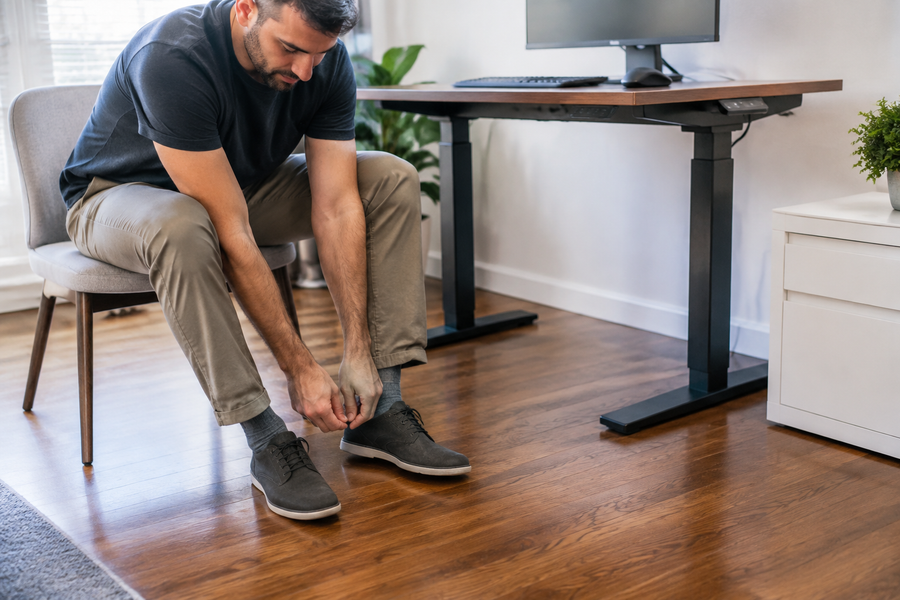
- Observe the feet. From a safe standing position, have a second person watch whether a leveling foot loses contact. Do not place fingers under a foot.
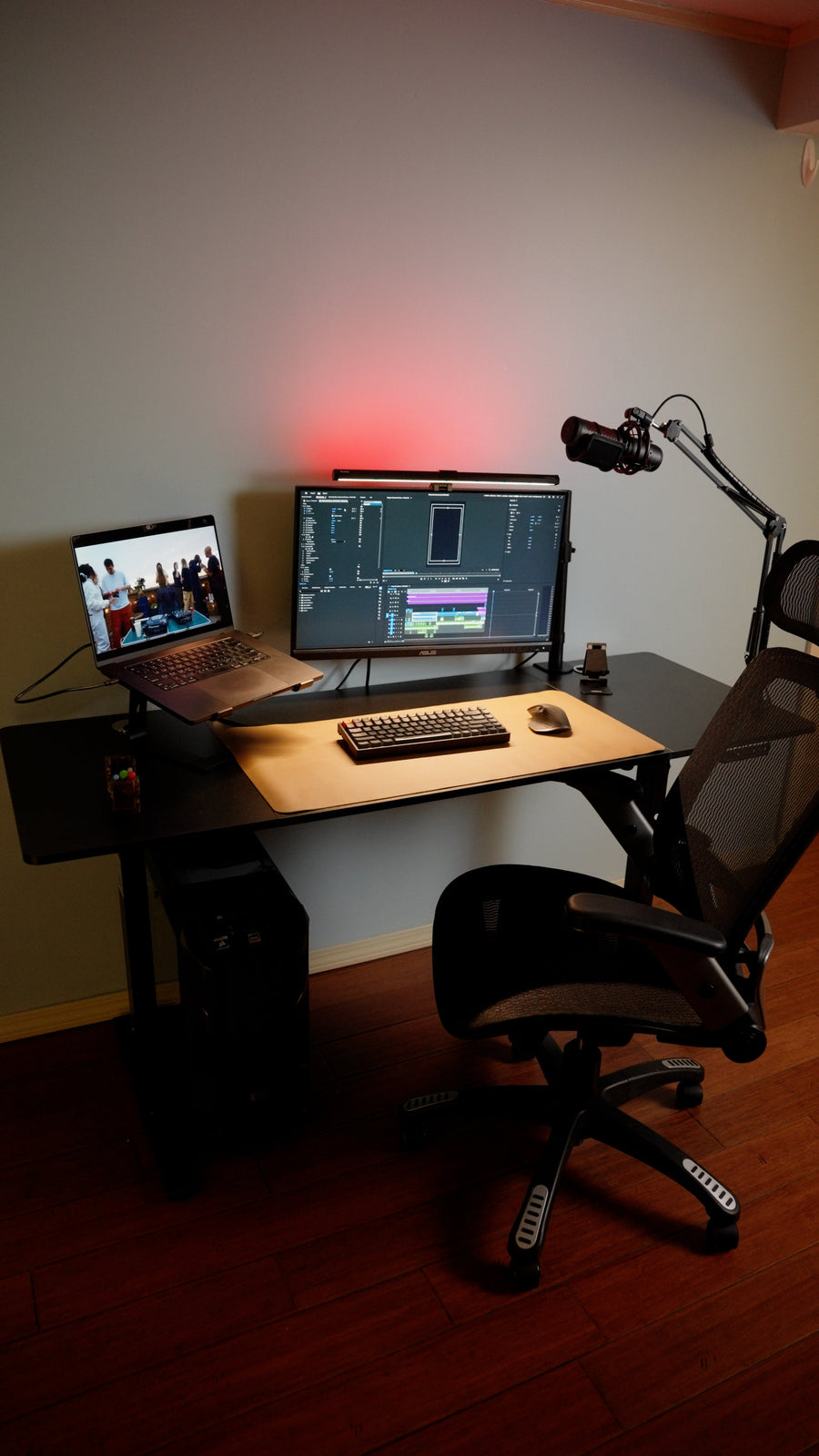
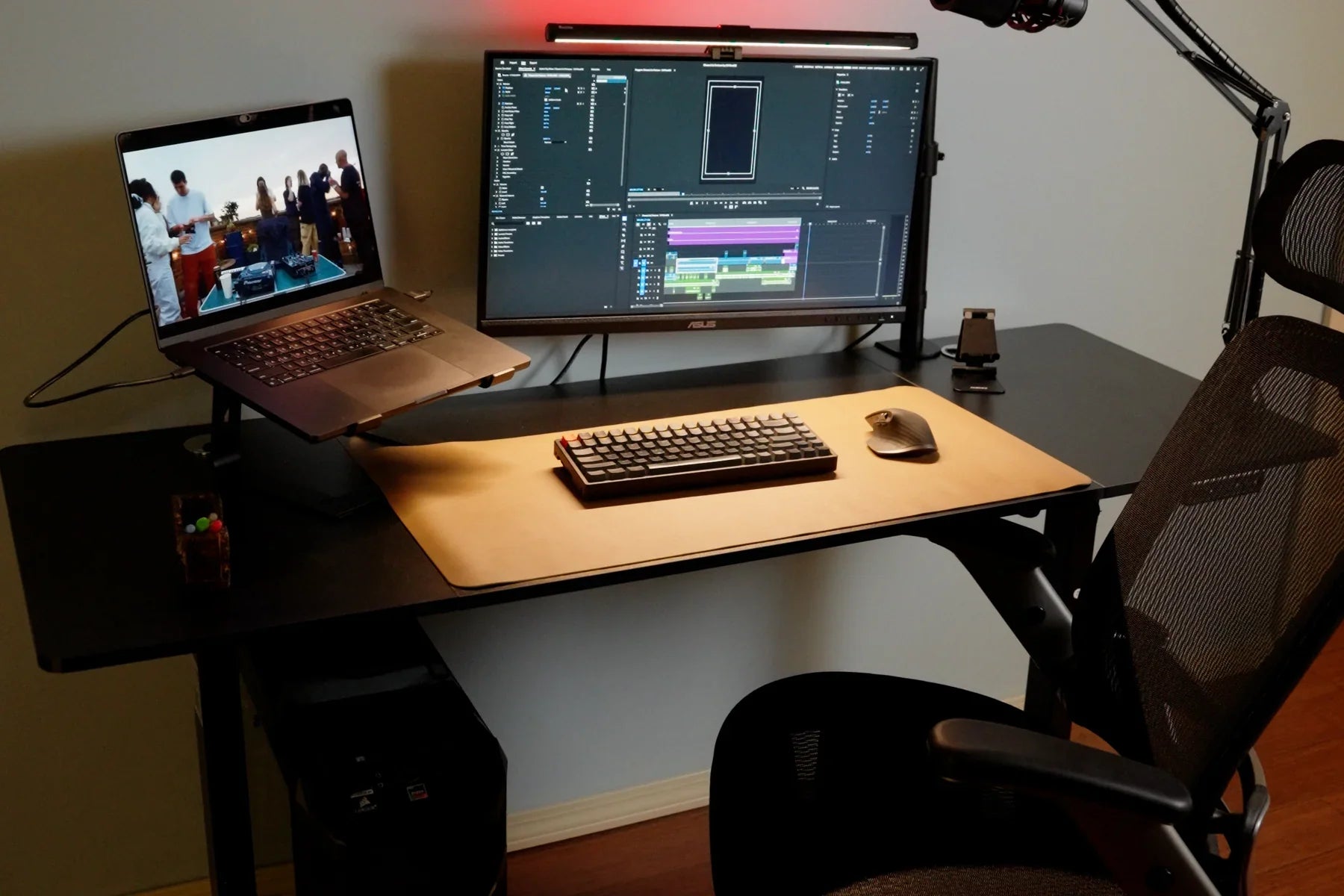
- Separate screen movement from desk movement. Watch a point on the desktop and the monitor edge. If only the screen continues moving, inspect the monitor support rather than dismantling the desk.
- Change one condition at a time. If you move the desk, remove a monitor arm, and tighten hardware simultaneously, you will not know which change mattered.
Apply Fixes From Least Invasive to Most Specific
Clear the moving envelope
Check under, behind, and above the desk before every height change. A cabinet, wall trim, window sill, cable, computer tower, chair arm, or monitor arm can touch the desk and transfer movement. Cables need enough slack for full travel without becoming loops that catch feet or people. Observe the route at the lowest position, highest position, and during movement before changing the frame or feet.
Establish four firm points of floor contact
Move the desk only according to its manual and with enough people for its size and weight. Set it on a clean area of the floor. A rug seam, thick pad, loose threshold, or debris under one foot can create a diagonal rock.
If the model has adjustable leveling feet, disconnect power before working near the base and follow the manual’s direction. Make small changes until each approved contact point is firm. Do not slide objects under a foot as a permanent shim unless the manufacturer accepts that solution; a loose improvised shim can shift during desk travel.
Verify assembly connections without improvising torque
Use the exact assembly guide for the model and confirm that every specified fastener is present in the correct location. With the desk unplugged and supported as the manual requires, check connections at the feet, columns, frame rails, support brackets, and desktop.
Use the specified tool and tightening sequence. Do not substitute longer screws, power a fastener beyond the instructed tightness, or keep turning a stripped insert. Over-tightening can damage a desktop, distort a bracket, or strip threads. If a fastener will not seat normally, stop and contact support.
Bring the load inward and simplify cantilevered accessories
Heavy items near an edge and long monitor arms increase leverage. Place equipment within the manufacturer’s loading guidance, keep the combined weight below the stated limit, and avoid concentrating everything on one side. Test with the monitor arm folded closer to its post. If screen bounce improves while the surface remains stable, the monitor support or clamp interface is the more useful place to investigate.
Do not attach a wall tether, diagonal brace, or third-party crossbar to a moving desk unless the desk manufacturer has approved the exact hardware and mounting method. A rigid wall attachment can conflict with vertical travel and create a new pinch, pull, or structural hazard.
Use the lowest suitable working height
The correct standing height is based on the user, not a desire to keep the desk near its maximum extension. Set the keyboard and mouse so the shoulders can stay relaxed and the elbows are near a comfortable working angle. If the desk must be near maximum height to fit you, record that fact when speaking with support; it is part of the real use case.
Retest and Decide Whether the Result Is Acceptable
Return the desk to the original test height and load. Repeat the same typing task—not a harder push. Record which single change was made and whether one-corner rocking, frame sway, desktop flex, or monitor bounce changed.
A useful result is a desk that stays planted and workable during normal input at the intended height. Stop troubleshooting and request support if normal use still causes severe movement, the condition gets worse, a connection will not tighten correctly, the desktop attachment is damaged, or the desk travels unevenly.
For an OdinLake desk, use the Help Center or contact support with the model and documentation. If the desk also shows an error or has lost its height reference, do not assume wobble and control behavior share the same cause; apply a recalibration only when the exact model instructions call for it. The home-office standing desk guide offers a separate pre-purchase check for frame, desktop, load, and room fit.
Prevent the Wobble From Returning
- Keep the travel path clear and inspect cable slack after equipment changes.
- Recheck floor contact after moving the desk or changing rugs.
- Use the model’s maintenance schedule for fastener inspection.
- Keep heavy equipment within the approved load and distribute it as instructed.
- Confirm clamp compatibility before adding monitor arms, shelves, or side extensions.
- Save the manual, model number, purchase record, and support contact.
When evaluating a new desk, look beyond motor count. Published dimensions, height range, load rating, desktop compatibility, assembly documentation, and test claims give a more complete picture. ANSI/BIFMA X5.5 is the BIFMA standard family that includes height-adjustable tables; ask the seller to identify the exact product and verification behind any standards claim.
Frequently Asked Questions
Why does my standing desk wobble only when raised?
Greater height makes small amounts of floor, frame, desktop, or accessory movement easier to see. Compare the same light work task at seated and standing heights, then check floor contact and model-specific connections.
Should I tighten every screw on a wobbly standing desk?
Verify only the fasteners identified in the exact assembly guide, using its tool and sequence. Do not over-tighten, substitute hardware, or turn damaged threads.
Can a monitor arm make a standing desk feel unstable?
Yes. A long or heavily loaded arm can amplify small surface movement. Fold the arm closer to its post and compare; also confirm the clamp and desktop are compatible.
Can I brace a standing desk against the wall?
Not without model-specific approval. A rigid brace or tether can interfere with vertical travel, damage the wall or desk, and create cable or pinch hazards.
Is a little standing desk movement normal?
Some movement after a deliberate push can occur, especially at greater height. Movement that disrupts normal typing, worsens suddenly, accompanies visible damage, or continues after approved checks should be documented and reported to support.