The right ergonomic setup should adapt to your body, support frequent movement, and stay comfortable through a full workday.
A standing desk error code is not a universal diagnosis. The same code can describe a motor connection, overload, thermal pause, or calibration request on different control systems. Record the exact code and model first, make the desk safe, then follow that model’s manual. If the manual is unavailable, use the low-risk checks below without opening the control box or lifting columns.
This distinction matters because a generic “E01 means…” list can send you toward the wrong part. A code is best treated as a routing signal: reset state, power or connection issue, movement obstruction, load or heat protection, uneven travel, or a fault that requires support.
Before You Touch a Cable, Capture the Evidence
- Stop pressing the handset and note whether the desk is moving, silent, or moving unevenly.
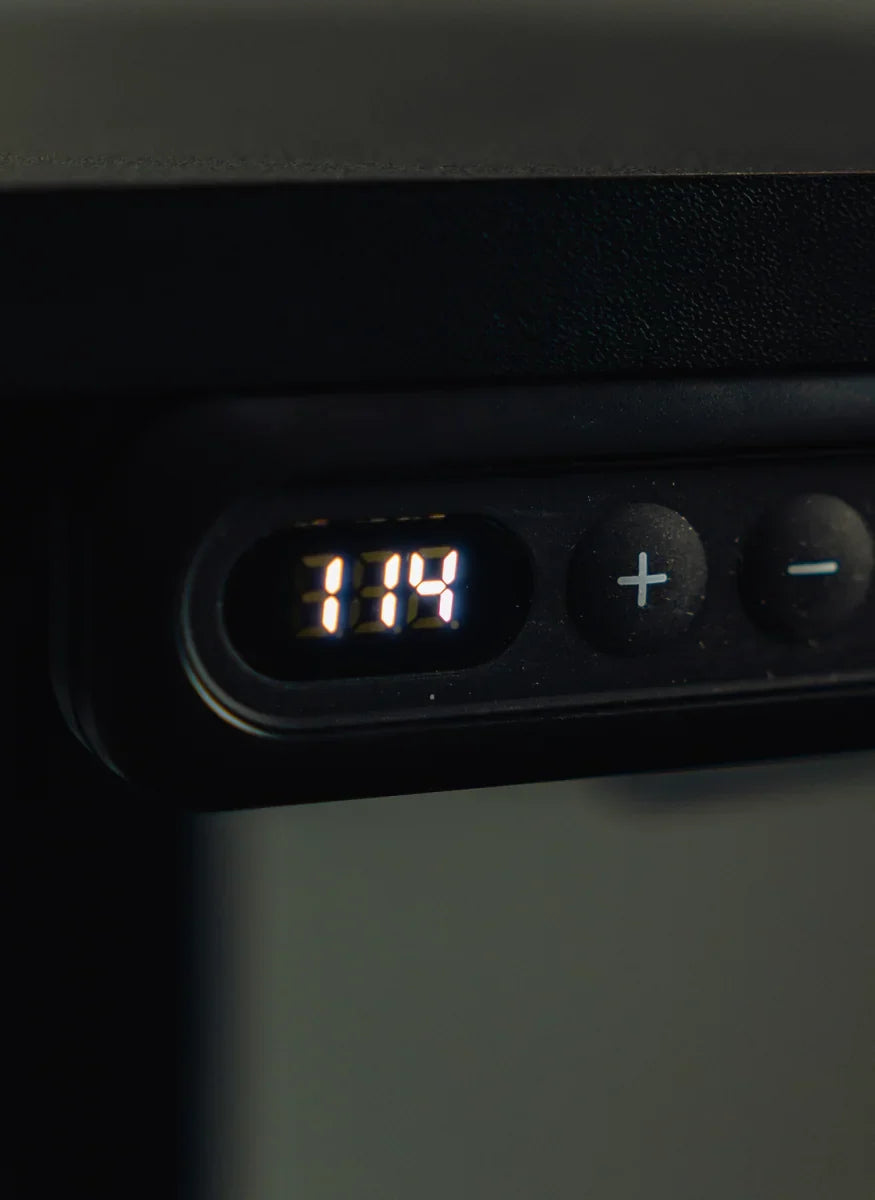
- Photograph the display before unplugging anything. Preserve capitalization and characters such as
ASr,RST,HOT,E01, orE07. - Find the desk model and serial label. Photograph the handset and control-box labels as well.
- Record what happened immediately before the code: assembly, a power interruption, a move, a heavy load, repeated cycling, or a cable change.
- Save the current desktop load and approximate height. Do not repeatedly raise and lower a desk that is out of level.
Those details help distinguish a recoverable setup state from a part-level fault. They also make a support request much faster than reporting only that the desk “doesn’t work.”
Use the Code Family, Not a Universal Code Dictionary
| What the display suggests | Low-risk first response | When to stop |
|---|---|---|
RST, ASr, dashes, or another reset prompt |
Clear the travel path and perform only the reset sequence specified for the model. | The desk will not descend evenly, makes abnormal noise, or the reset never completes. |
HOT, H01, or a heat/overuse message |
Stop cycling the desk and allow the manufacturer’s stated cooling period. | The code returns during ordinary use or there is heat, odor, smoke, or damaged wiring. |
E01–E0x or a motor/leg message |
Compare the code with the exact manual, then inspect accessible plugs and visible cables with power disconnected. | One leg is higher, a cable is cut or crushed, or the manual identifies a component fault. |
| Overload, collision, or obstruction message | Remove unnecessary load and check the full path above, below, and beside the desk. | The desk is trapped against furniture or the frame/top appears bent or detached. |
| Blank display | Check the wall outlet, approved power lead, visible connectors, and power status in the manual. | There is liquid exposure, a hot adapter, scorch marks, a loose mains connection, or repeated power loss. |
For example, official manuals from different desk makers assign E01 to different conditions. That is why this guide does not claim that a code has one meaning across every standing desk.
Follow This Safe Troubleshooting Order
1. Make the travel path clear
Remove drawers, file cabinets, wall shelves, window sills, chair arms, and loose cables from the desk’s full vertical path. Check both sides. A cable can look free at sitting height and become taut near maximum height.
2. Reduce the load without unbalancing the top
Remove heavy, nonessential items such as printers, desktop towers, speaker stacks, and dense book piles. Keep any remaining equipment stable and roughly centered. Do not ask someone to lift one side while the motors run.
3. Power down before checking connections
Unplug the desk from the wall. Inspect only accessible cables named in the manual: handset, power supply, control box, and leg/motor leads. Look for partially seated plugs, a connector placed in the wrong labeled port, pinching, sharp bends, or visible damage. Reconnect only as shown for the exact model.
Never open the power supply, control box, motor housing, or lifting column. Do not bypass anti-collision protection or substitute a power adapter based only on connector shape.
4. Apply the manual’s waiting or reset step
A thermal-protection message needs rest, not repeated button presses. A calibration message needs the documented reset sequence. Many desks use the down button during reset, but the timing, display behavior, and completion signal vary. Use the product manual rather than a universal button combination.
If your model calls for a standard recalibration, follow the exact sequence, display behavior, and stopping conditions in that model’s manual. Do not substitute a generic reset sequence simply because the keypad looks similar.
5. Run one controlled test
After the code clears, run the desk through a short, unloaded or normally loaded movement test as the manual directs. Watch both legs from the front. Stop immediately if the sides separate in height, the frame twists, movement becomes jerky, or a code returns.
What Not to Do When an Error Keeps Returning
- Do not keep power-cycling a desk with a damaged cable or uneven legs.
- Do not swap motor ports merely to experiment unless the manufacturer’s diagnostic procedure explicitly instructs it.
- Do not force a leg by hand, strike a lifting column, or add lubricant inside it.
- Do not exceed the rated load to “test” overload protection.
- Do not replace the controller, handset, or power supply with a visually similar part without compatibility confirmation.
A code that clears once but repeatedly returns under normal load is still useful evidence. Record the height, load, direction of travel, and time between occurrences rather than treating repeated resets as a permanent repair.
Build a Support-Ready Error Report
Send OdinLake support the desk model, serial number, order details, exact code, clear photographs of all labels and accessible connections, a short video showing the display and both legs, approximate desktop load, and every troubleshooting step already completed. Mention whether the desk was recently assembled, moved, unplugged, or exposed to liquid.
This report gives support enough context to decide whether the next step is a model-specific reset, connection correction, replacement part, or technician-level service. If you are still choosing a desk, compare documentation, warranty, control system, and service access—not only the number of memory buttons. The home-office standing desk guide provides that broader pre-purchase comparison.
Frequently Asked Questions
What does ASR mean on a standing desk?
On many control systems, ASr or a similar display indicates a reset or re-initialization state. It does not automatically mean the desk is broken. Clear the travel path and use the reset sequence in the exact model manual.
What does RST mean on a standing desk?
RST commonly asks for system calibration after assembly, a power interruption, or certain faults. The required button timing and completion signal differ by controller, so do not assume that every desk resets identically.
Does E01 mean the same thing on every standing desk?
No. Current manufacturer instructions assign E01 to different conditions, including leg communication, motor, overload, or thermal protection. Match the code to the model and manual before changing a part.
Why does my standing desk show an error after a power outage?
The controller may have lost its stored position and require re-initialization. Check connections, clear the path, and follow the model’s power-recovery or reset instructions. If the legs are uneven or the code persists, stop and contact support.
Can I keep using a standing desk after the error code disappears?
Run one controlled test and observe both legs, wiring, sound, and load. Normal, synchronized movement with no returning code is encouraging; uneven travel, abnormal noise, damaged wiring, or a recurring code requires support.
Should I unplug a standing desk with an error code?
Unplug it before inspecting accessible connections, and unplug immediately for damaged wiring, liquid exposure, odor, smoke, or unusual heat. For a normal reset or cooling procedure, follow the manufacturer’s exact power instructions.