The right ergonomic setup should adapt to your body, support frequent movement, and stay comfortable through a full workday.
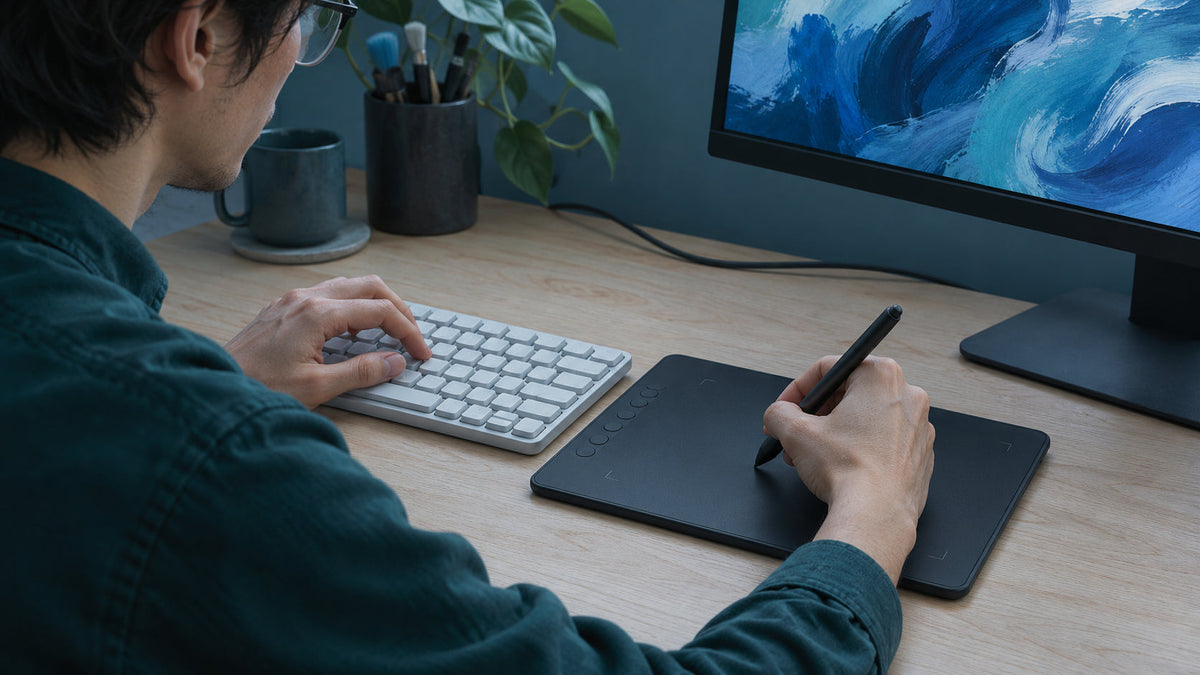
If you illustrate or retouch on a screenless pen tablet, then switch to email, captions, or client notes, your drawing tablet and keyboard can end up competing for the same patch of desk. This guide helps you arrange both around the task you are doing and check the setup before buying a bigger desk or another accessory.
The useful starting point is a movable layout: give sustained pen work and sustained typing their own central position. A keyboard placed to one side for shortcuts may work during drawing, yet be awkward for writing several paragraphs.
Start with the task that takes the next few minutes
List three things you actually do: perhaps paint a selection, rename layers, and write a project update. Notice which require the pen, a few keys, or both hands on the keyboard. Those are different space requirements, even within the same application.
This is a real setup problem, not a new market trend. In a September 24, 2026 Reddit discussion, one person described difficulty fitting a keyboard around a Cintiq while also needing it for programming. That individual example involves a pen display, but highlights a useful question for any shared desk: where does the keyboard go when you need to type properly?
Choose a starting layout for your equipment
A screenless tablet uses a separate monitor. A pen display is a screen you draw on, with its own viewing angle, weight, and support requirements. Start with the appropriate row below; these are practical layouts to test, not measurements that fit every body.
| Your task or device | Starting arrangement | What to check |
|---|---|---|
| Long drawing session, occasional shortcuts | Tablet in an easy pen-hand position; keyboard close beside it | Can you reach shortcut keys without lifting or spreading your shoulder? |
| Writing or coding between drawing sessions | Move the tablet to a parking space; bring the keyboard in front | Can both hands type without turning your torso? |
| Large pen display | Plan display support and a separate typing position | Does its approved stand or arm leave space and remain stable? |
For typing, OSHA's keyboard guidance recommends placing the keyboard directly in front of you, with relaxed shoulders and elbows near your body. Use that as a check when returning from pen work. You should not have to keep your upper body turned toward a keyboard left beside the tablet.
Make the switch easy enough to repeat
First, clear a parking space beside or behind the active work area. Measure the tablet's whole footprint, including buttons and cable connectors. It should sit securely when parked, rather than balance on a speaker, hang over the desk, or cover a laptop vent.
Next, put the keyboard where you can type a normal reply. Move the tablet out and back several times. If each switch requires unplugging it or shifting a monitor, simplify the cable route or remove an unused object. Leave enough cable slack for the move without pulling the connector.
For drawing, return the tablet to the position you can reach with a relaxed arm. Its geometric center does not have to match the center of the desk: your pen hand, tablet size, and chosen active area matter. Keep the monitor easy to view while checking the canvas. Change one position at a time so you can tell what helped.
A seated height-adjustable desk can help you experiment with working height if its range allows. Raising it will not solve a keyboard that remains too far behind the tablet. Deal with horizontal reach as well.
Separate shortcuts from two-handed typing
A compact keyboard can free space, provided it retains the keys you use. Before replacing a full-size model, note whether you need its number pad, function row, or particular shortcuts. Losing those may create a different problem.
A small shortcut controller, tablet buttons, or a pen button can keep common commands nearby. Assign a few frequent actions, such as undo and brush-size changes, then see whether they reduce repeated reaches. They will not replace a keyboard for writing a report. OSHA's pointing-device guide also discusses reachable device placement and keyboard shortcuts; it does not prescribe one tablet layout.
For an artist's perspective, David Revoy describes his own workstation compromises in a Wacom-hosted article dated August 17, 2022. He explicitly identifies it as personal experience, not professional ergonomic advice. Treat creator setups as ideas to examine against your equipment and tasks.
Check the chair after placing the working tools
Once the active device is reachable, adjust your chair so you can approach the desk without an armrest stopping you. Keep foot support in the check, too. If this is the sticking point, use our guide to armrests that hit the desk.
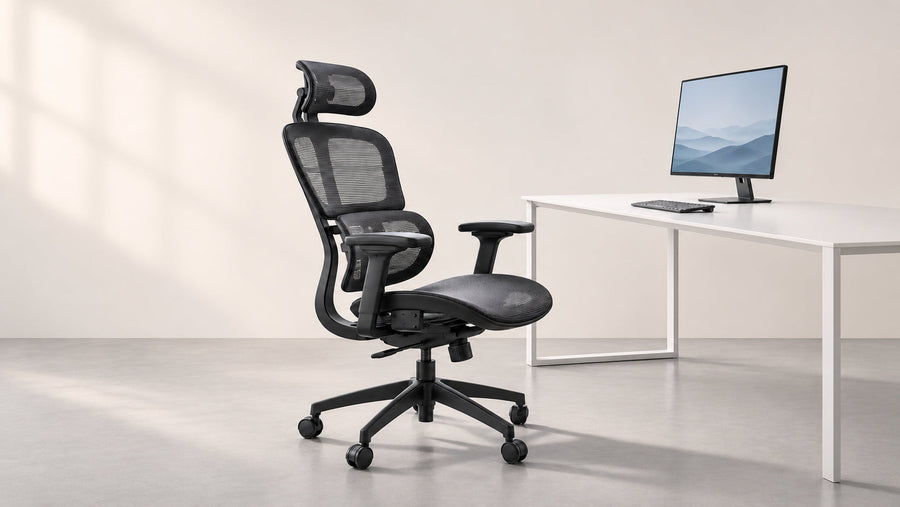
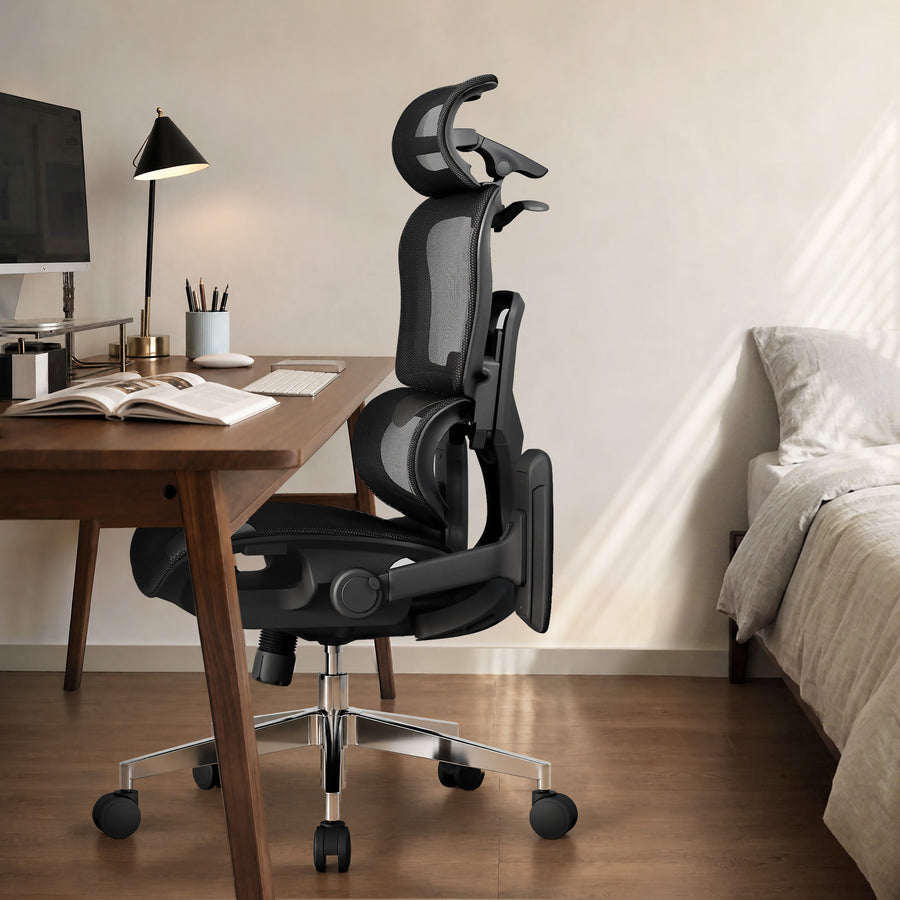
The OdinLake L3 FlexBreath has adjustable seat height and depth and flip-back armrests, which may be useful when you want more room near the desktop. Its published recommended height range is 5'3"–6'2"; this is a starting reference, not a promise of individual fit. Compare the current dimensions with your body and desk. A chair cannot bring an offset keyboard closer or support an oversized pen display.
Try this ten-minute switch test before ordering anything
- Two minutes drawing: work across your usual canvas area. Watch for a raised shoulder or a bent wrist.
- Two minutes typing: move the tablet aside and write a real paragraph with both hands.
- One minute switching: move between the positions and check for cable snags or objects you must repeatedly rearrange.
- Two minutes drawing again: use the shortcut keys you normally need, including the less convenient ones.
- Two minutes typing again: check whether you can return to the same position easily.
- One minute deciding: identify the remaining obstacle: device width, cable routing, armrest clearance, or display support.
That last observation gives your next purchase a specific job. Large pen displays still need manufacturer-compatible stands or mounts; do not balance a keyboard on the drawing surface or improvise a support. For a screenless setup, an easy move between drawing and typing may be all the change you need.
Product information and linked guidance checked November 25, 2026. This is a practical setup guide, not a hands-on product test or medical advice.