Identify the keypad before trying a button combination. Includes verified unlock steps for standard TDH18P and TDH20P controls, plus a separate route for OdinLake owners.
The right ergonomic setup should adapt to your body, support frequent movement, and stay comfortable through a full workday.
A standing desk unlock command depends on its keypad—not just the desk brand or the word LOC. For the standard TiMOTION TDH18P and TDH20P controls covered below, hold the dedicated padlock button for three seconds. Use that instruction only after matching the controller model and checking that the desk manufacturer has not supplied a different configuration.
If your keypad is different, start with the display check below. A dark screen, an error code, and a locked keypad can all leave the desk unresponsive, but they do not have the same remedy. This guide separates those states, gives a verified unlock procedure for two identified controls, and explains where OdinLake owners should look for their own model instructions.
Read the display before choosing a fix
First clear the desk’s travel area. Move the chair, drawers, storage bins, and other objects away from the space above and below the desktop. Keep people and pets clear, and check that monitor and power cables have enough slack. Even a quick button check can lead to movement once a lock is released.
| What you see | What it tells you | Next action |
|---|---|---|
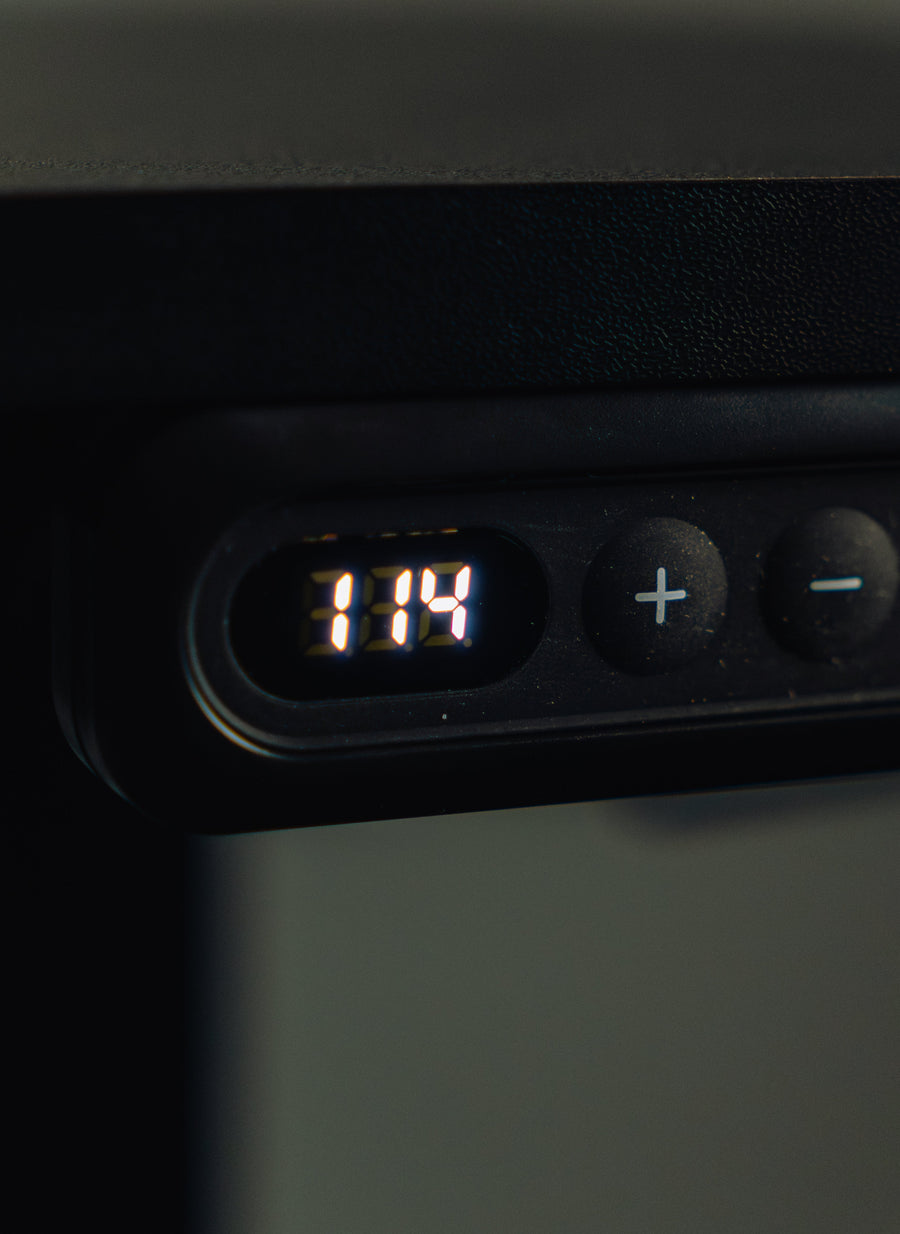
| LOC, LOCK, a padlock, or the lock indication pictured in your manual | A keypad lock is a likely explanation, but the message does not identify the required buttons | Match the controller, then use its unlock instruction |
| A dark display | The panel may be asleep or without power | Use its documented wake action before assuming a fault or lock |
| A number or letter code that the manual identifies as a fault | The control is reporting a specific condition | Record the code and use the matching fault instructions |
| A normal height reading, but no movement in one or both directions | The display alone does not establish a keypad lock | Check for a travel limit, obstruction, or other condition in the model guide |
| Uneven lifting, grinding, visible damage, or an unstable desktop | This is not an ordinary keypad-unlock task | Stop operating the desk and arrange support |
Do not repeatedly press every button to see which one works. Write down the message exactly—including spaces, dashes, and symbols—and note whether it appears before or after a key press. That record is more useful than “the desk is stuck.”
Match the handset, not just its appearance
Find the desk model on your order record or product label. Then look for a handset or controller model in the supplied instructions or on an accessible label. You do not need to open the control box or remove an electrical cover to identify it. Photograph labels only when you can reach them safely.
Check both the model identifier and the control drawing. A panel with arrows and memory buttons can resemble another model while using different programming. A padlock symbol is a useful clue, not enough evidence on its own. Where the desk maker provides revised instructions for its configuration, those instructions take priority over the component supplier’s generic manual.
Unlock a standard TiMOTION TDH18P or TDH20P
These are control-component models, not desk recommendations. There is no confirmed evidence here that OdinLake S450 or S2 desks use either handset.
| Confirmed controller | Source to match | Unlock action |
|---|---|---|
| TiMOTION TDH18P, standard configuration | TDH18P manual, version 5, interface on page 4 and lock function on page 8 | Hold the dedicated lock button for 3 seconds |
| TiMOTION TDH20P, standard configuration | TDH20P manual, version 2, interface on page 4 and lock function on page 8 | Hold the dedicated lock button for 3 seconds |
Perform the unlock and check the result
- Confirm the match. Use the model and interface checks above. Both manuals warn that desk manufacturers may customize settings; do not use this sequence when your desk’s own instructions differ.
- Locate the padlock button. On the documented TDH18P interface, it is the separate button beside the memory buttons. It is not either height arrow.
- Hold that lock button for three seconds, then release it. Do not substitute a memory key or a pair of arrow buttons.
- Check ordinary height control. With the travel path clear, briefly use one height arrow and release it. Confirm that the desktop responds evenly and stops when you release the arrow. This is a functional check, not a reset or a full-range travel test.
If the panel remains locked, recheck the model and configuration. Do not extend the hold indefinitely or try a series of unrelated combinations. If the display changes to a fault message, record it and leave the unlock procedure. Stop immediately if motion is uneven, obstructed, or abnormal.
If it locks again after a short pause
The standard manuals for both controls describe automatic locking after 20 seconds without a button press. A lock that returns after inactivity can therefore be normal behavior for these configurations. Do not treat it as a reason to reset the desk or disable a safety feature. This timing is not a rule for other handsets.
Using this guide with an OdinLake desk

Start at the OdinLake assembly and product-guide library. The linked S450 manual covers initialization, preset heights, and fault responses. It does not provide a universal LOC-unlock command for all OdinLake desks. Its reset procedure should not be relabeled as a child-lock instruction.
For an S2 or another OdinLake model, use that model’s current controller instructions. If you cannot find an unlock entry, send OdinLake support the following in one message:
- The exact desk model, order information, and any controller identifier.
- A clear photo of the whole keypad and the displayed message.
- A safely accessible control-box label photo, without opening the housing.
- Whether the desk worked before the message appeared and what immediately preceded it.
- A request for the specific unlock buttons, hold time, and expected confirmation for that configuration.
Until that sequence is confirmed, do not apply the TiMOTION instructions simply because your desk has similar-looking buttons. An identified controller is the boundary between an applicable instruction and a guess.
If unlocking does not restore movement
A blank panel needs a power or wake check
Follow the model’s wake instruction. If the display remains dark, check whether the outlet or power strip is supplying power. With the desk unplugged, inspect accessible external plugs for a loose connection and cables for visible damage. Reconnect only intact plugs intended for that socket; do not force a connector or open the power supply, control box, motor, or lifting column.
A fault code needs the matching explanation
Use the exact code and model together. Our standing-desk error-code guide keeps fault diagnosis separate from keypad locking. An identical-looking code on a different controller is not proof of an identical fault.
A reset is a separate procedure
If the model’s instructions call for initialization after the relevant checks, follow the standing-desk reset guide with the exact manual beside it. Resetting may involve downward travel and changes to stored settings; it is not a shortcut for identifying an unknown lock command. Do not start a reset when the desk is lifting unevenly or cannot travel safely.
After normal control returns, check that both height directions work smoothly within a small clear range. Then confirm the sitting and standing positions you actually use. If the same fault returns, stop the repeated attempts and give support the display record and steps already tried.
Sources checked September 9, 2026. Button sequences above are taken from identified published manuals, not from hands-on testing of an OdinLake controller.
Frequently Asked Questions
What does LOC mean on a standing desk?
It commonly indicates a keypad lock. Confirm the message in your controller’s manual, because it does not identify the unlock buttons by itself. A different fault code or a blank display should not automatically be treated as LOC.
Which button unlocks a standing desk?
For the standard TDH18P and TDH20P configurations cited above, use the dedicated lock button for three seconds. There is no equivalent universal instruction for every desk. Match the controller before using that timing.
Why does my standing desk lock again after I unlock it?
Some controls lock automatically after inactivity. The standard controls documented above include this behavior. Check your configuration before treating a returning lock as a fault or trying to disable it.
Can I unlock a standing desk by unplugging it?
Do not rely on disconnecting power to clear a keypad lock. Use the documented unlock command. A power check can help with an unpowered panel, but that is a different problem from a confirmed lock.
Should I reset a standing desk that shows LOC?
Start with the applicable unlock instruction. Move to a reset only when the model’s troubleshooting procedure calls for it. Resetting an unidentified controller can introduce movement or setting changes that are unrelated to the lock.
What should I do if the unlock button does not work?
Recheck the controller identifier and any manufacturer-specific programming. If the match is correct and the command still fails, record the display and contact support. Stop sooner for damaged cables, a burning smell, grinding, or uneven lifting.